Assigning Risk Mitigation Plans
You can assign mitigation plans defined in Mitigation and
Response view to your risks. One risk may have multiple sequential
mitigation plans. They be shown as a Waterfall diagram. Waterfall
diagrams can be used to visualize the timing of mitigation efforts
over the course of the project.
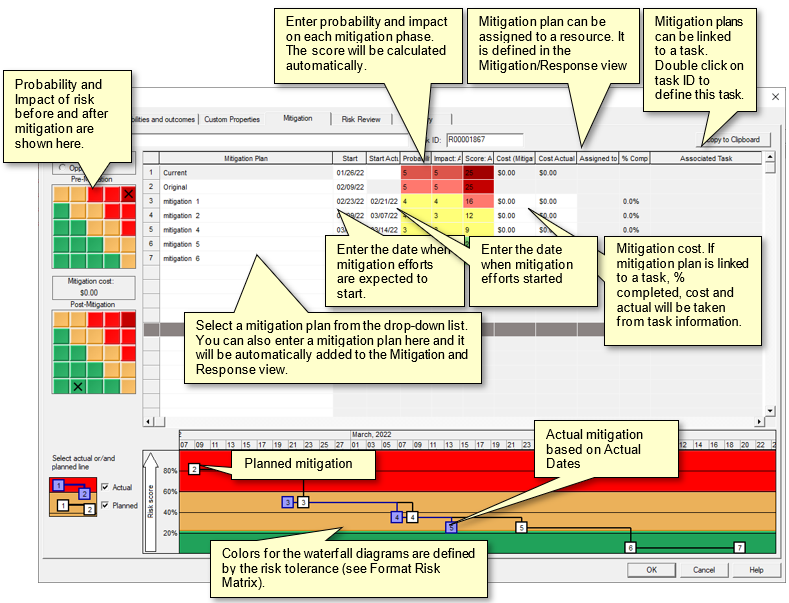
Viewing waterfall diagrams
-
Open the Risk Register
view.
-
Double click on Risk ID.
The Risk Information Dialog box opens.
-
Click the Mitigation (Waterfall diagram) tab.
-
Enable or disable Actual and Planned mitigation lines using check boxes on the left bottom corner.
-
Double click on Mitigation Plan ID; the Mitigation Plan Properties dialog box opens.
- Enter a mitigation description.
-
Select the task or summary task to assign it the mitigation plan.
If mitigation plan is linked to the task, cost, actual cost, and percent completed of the mitigation plan will taken from task.
- To delete the task assignment, click Clear task selection.
- Pre-mitigation probability and impact are the results of calculation. Therefore, they cannot be updated in the waterfall tab.
-
Probability, impact, and score for the last mitigation effort are converted into the post-mitigation probability, impact, and score and will be shown in the Risk Register.
- You can view Planned and Actual risk mitigation efforts. Actual mitigation efforts are shown based on actual dates entered the the table above.
See also
Assigning Risk Response Plans
Assign Mitigation View
|